Mobile Application Management is now generally available for the Windows App for iOS/iPadOS devices and is in preview for the Remote Desktop app for Android.
You can now manage different redirection settings for devices based on user security groups, the OS of the device, if the device is enrolled in Intune, or if it is BYOD. Before this change, you had to have the same redirection on devices that were managed by Intune or BYOD since they were managed at the host pool/RDP level.
MAM supports MDM + MAM for Intune enrolled devices and MAM application management for BYOD. To ensure you get the most out of Intune MAM, use device filters, app configuration policies and app protection policies. Also, you can use conditional access policies to ensure devices have an app protection policy applied before allowing access to host pool/cloud PC resource.
Here is how you would set up Intune MAM for un-managed iOS devices only to disable drive redirection.
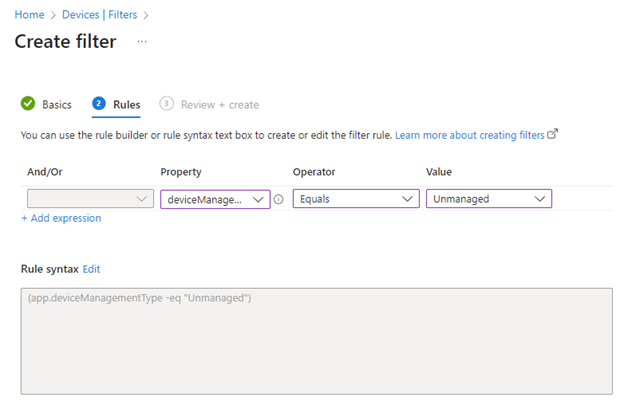
- Create your managed app filter for un-managed devices from “Home > Devices | Filters.”
- Create an app configuration policy that disables drive redirection by setting the RDP property “drivestoredirect” to 0. Select the Windows App for iOS.
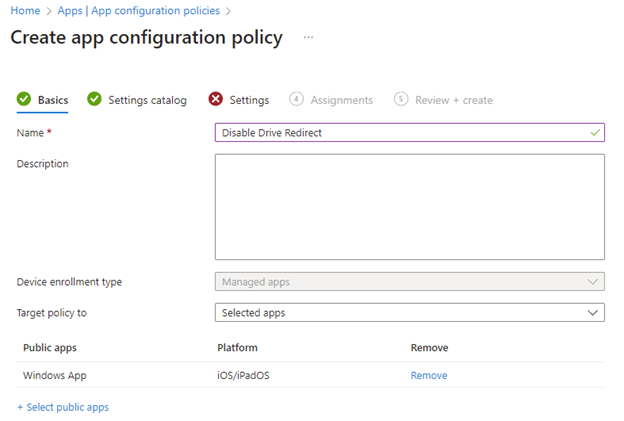

- Before you assign the app configuration policy to a group, be sure to add the filter that was just created to ensure the policy applies to un-managed devices.

- When you sign into an Azure Virtual Desktop host pool with the Windows App using …
…a managed iPad, drive redirection is allowed…
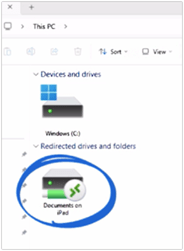
…and on an un-managed iPad, drive redirection is not allowed.

As I mentioned previously, you can also use app protection policies to require a minimum OS version, minimum app version, etc. and use conditional access policies to require an app protection policy be applied before access to an AVD host pool or a W365 cloud pc.
You can find more details here.

 Big Chris's Cloud PC Chronicles
Leave a comment