
With Windows 365 Boot, administrators can configure devices that will prevent users from signing into the physical device, but instead, sign in directly to their Windows 365 Cloud PC.
Windows 365 Boot comes in two flavors:
- Shared Mode: multiple users using the same device.
- Dedicated Mode: a single user who is using the device.
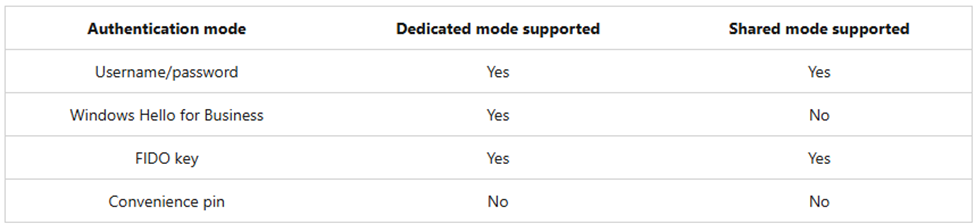
Not all Windows 365 authentication features are available in both modes. The following table shows authentication features available with each mode.
Configuring Windows 365 Boot is a breeze! Just make sure you have met the prerequisites.
- Each physical device and Cloud PC must be running Windows 11 Enterprise or Professional, version 22621.3374 or later.
- You must have the Intune Service Administrator role.
- Physical devices must meet the Windows 365 Boot requirements.
- Sign Intune. Browse to Devices > Windows 365 (Overview) > Windows 365 Boot (Windows 365 guides), then select Next: Basics
- Basics (configure as needed)

3. Endpoint Updates

Big Chris notes: Windows 365 Boot supports Autopatch for Windows 365 Boot physical devices.
4. Settings (Most settings are optional)

5. Assignments (make note of the exception for assigning to device groups)

6. Select Next: Review and Create, then select Create.
That’s all you have to do! Now either the assigned users, or users who use an assigned device will be able to take advantage of Windows 365 Boot!

 Big Chris's Cloud PC Chronicles
Leave a comment