Finally, a feature that has been available with Azure Virtual Desktop comes to Windows 365! Windows 365 Cloud Apps gives you the ability to give your end users secure access to certain apps that are hosted on a Cloud PC without having a Cloud PC for each user. Users who have a Windows 365 Frontline license will be able to take advantage of this feature.
Prerequisites
Users will need a Windows 365 Frontline license
Create Windows 365 provisioning policy for Cloud Apps
- In Intune, browse to “Devices” > “Windows 365” > “Provisioning polices” > “Create Policy.”
2. Select the “General” tab, for “Experience” (which is a new category), select “Access only apps.” This selection defaults the License type to Frontline and Shared mode
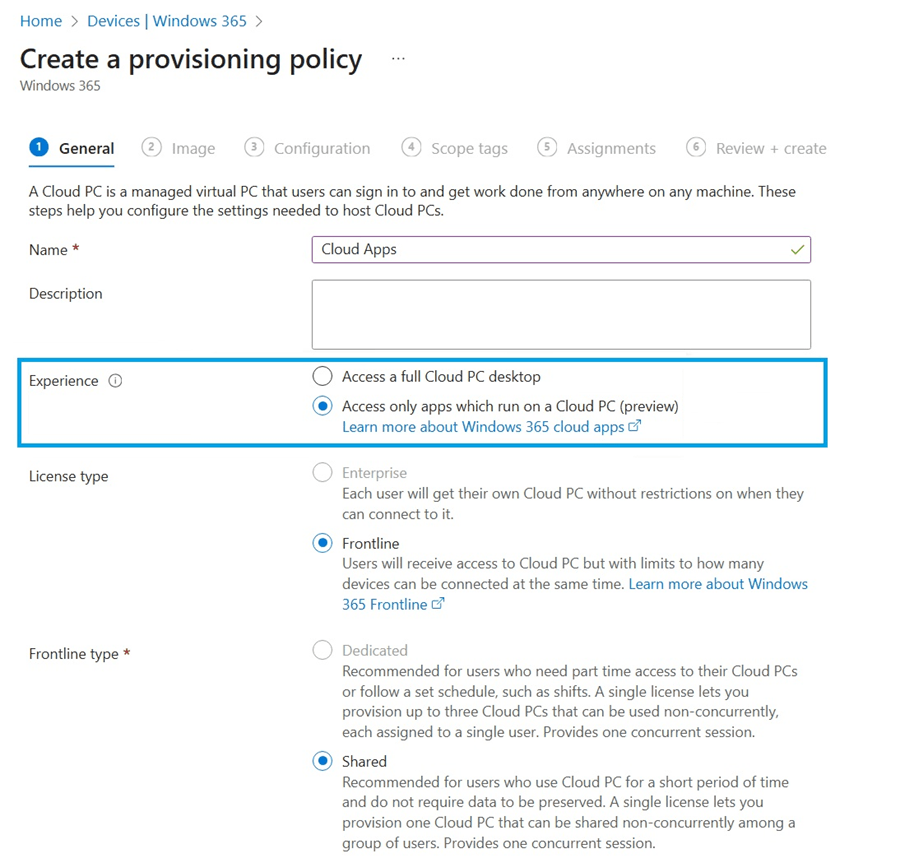
3. In the “Image” tab, select the image where the app is installed. All apps installed in the image will be available to publish.
4. Browse back to “Windows 365.” You will now see an “All Cloud Apps” with apps that will be available to publish.
5. Once an app has the “Ready to Publish” status, you can select the app or apps you want to publish. At that point you can edit settings for the app like the display name, additional command lines, icon, etc.
6. When you are done, click “Review + Publish.”
7. Apps will be available to users in the provisioning group with a Windows 365 Frontline license in the Windows App.
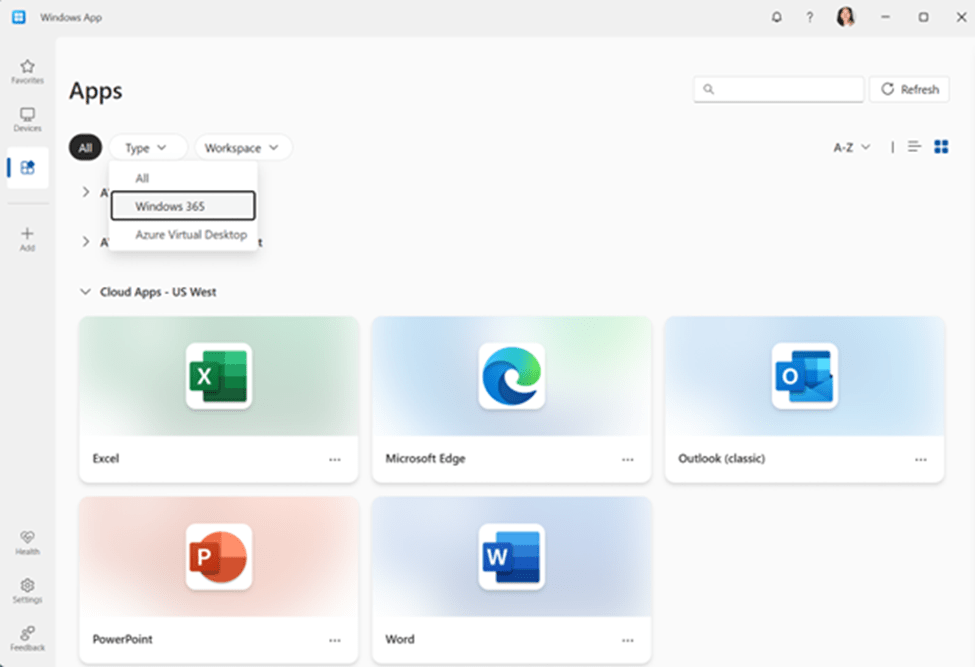
This new feature will allow the publishing of apps to users who may not necessarily need a full desktop with the ease of managing a Windows 365 Cloud PC from Intune!

 Big Chris's Cloud PC Chronicles
Leave a comment