
Accessing Windows 365 and Azure Virtual Desktop resources is from a client device already has features in place that ensure the session is secure. Encrypted sessions and MFA help prevent attacks like man-in-the-middle. However, what if there is already something on the client device that already introduces a threat like key logging? That is where Cloud IO protection comes in! Cloud IO Protection securely routes keystrokes directly to the Cloud PC, Cloud App, Cloud Desktop and Remote App (AVD), bypassing the OS which could potentially have threats installed. When Cloud IO protection is configured on a Cloud PC or AVD session host, only Windows client endpoints who have the Windows Cloud IO Protect MSI installed will be able to connect to the resources.
Big Chris Notes: Keep in mind, if Cloud IO Protection is configured, other OS clients (iOS, MacOS, etc.) will NOT be able to connect since they are NOT supported at this time. Also, Windows 365 Link is currently NOT supported.
Installing the Windows Cloud IO Protect MSI
There are some prerequisites for installing this MSI:
- The device must have TPM 2.0.
- Must be a Windows 11 physical device. There is no support for virtual machines.
- The Windows App need to be the following version or newer.
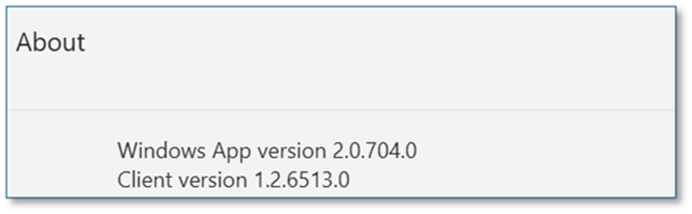
The install of the MSI is a simple “next, next” install. You have the following MSI install types.
Next, you have to configure your Cloud PC’s/AVD session hosts to use Cloud IO Protect. Here is how to deploy these settings with Group Policy (if your hosts are hybrid domain joined).
- If not done already, have the template for Azure Virtual Desktop (ADMX) available in your domain. Follow the steps in this article to get this done, Use the administrative template for Azure Virtual Desktop.
- From Group Policy Management, browse to Computer Configuration > Policies > Administrative Templates > Windows Components > Remote Desktop Services > Remote Desktop Session Host > Azure Virtual Desktop.
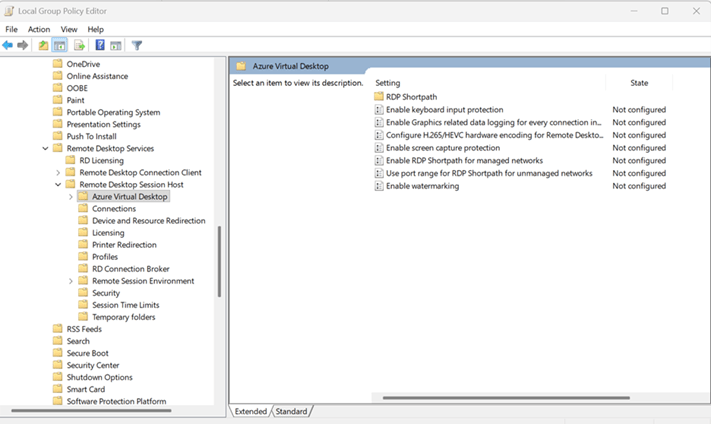
3. Enable “Enable Keyboard Input Protection.”
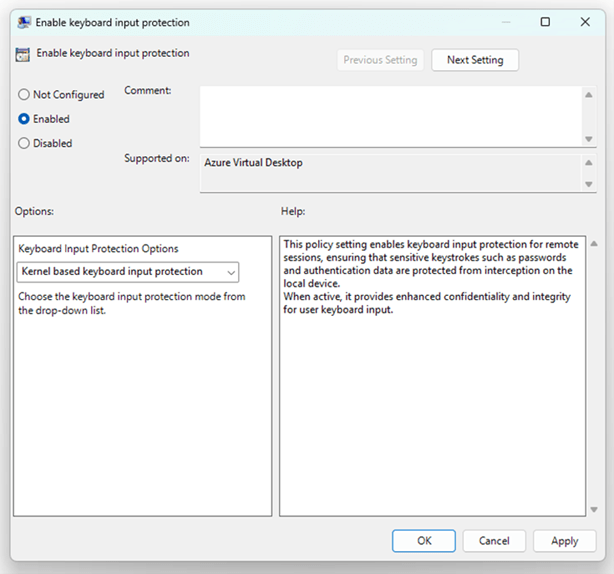
4. Restart Cloud PC/session host for settings to take effect.
Big Chris Recommends: “Hey Chris, my Cloud PC/session hosts are Entra ID joined only so I can’t use GPO. What can I do?” Well…you can edit the registry to apply this feature! Navigate to this key, “HKEY_LOCAL_MACHINE\SOFTWARE\Policies\Microsoft\Windows NT\Terminal Services,” then add the following DWORD entry, “fWCIOKeyboardInputProtection” and value “1.” A quick PowerShell command that you can deploy with a system management tool like Intune:
New-ItemProperty -Path “HKLM:\SOFTWARE\Policies\Microsoft\Windows NT\Terminal Services” -Name “fWCIOKeyboardInputProtection” -Value 1 -PropertyType DWord -Force
Add this feature to add another level of security to your Windows 365 or AVD environments!


 Big Chris's Cloud PC Chronicles
Leave a comment