
This issue affected a couple of my clients, and some of them asked if I would write a blog on how this can now be resolved, so here is my first “out-of-band” blog!
Microsoft released KB5077744 that resolves this issue. However, currently it is not available on any of the update platforms and needs to be downloaded and deployed “manually.” Here is a quick way to deploy this update as a Win 32 app using Intune.
- Download the appropriate update from the Microsoft Update Catalog.
- The update is going to have a long name, rename it to something shorter. In this example, I renamed the MSU file to “windows11.0-kb5077744-x64.msu.”
Big Chris Recommends: You don’t HAVE to do this step, but I have seen Intune “choke” on long file names for the setup file in a Win32 app. Plus, it can be easier to keep up with the setup file if it doesn’t have a crazy long name.
3. Use the Win32 Content Prep Tool to build your Win32 application package
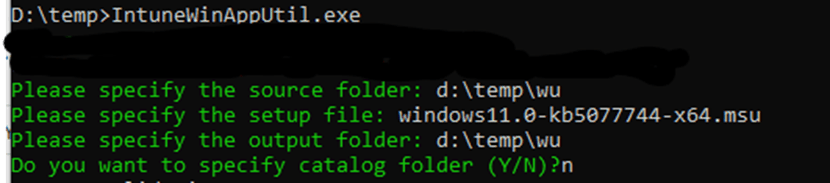
4. Upload the INTUNEWIN package to Intune.
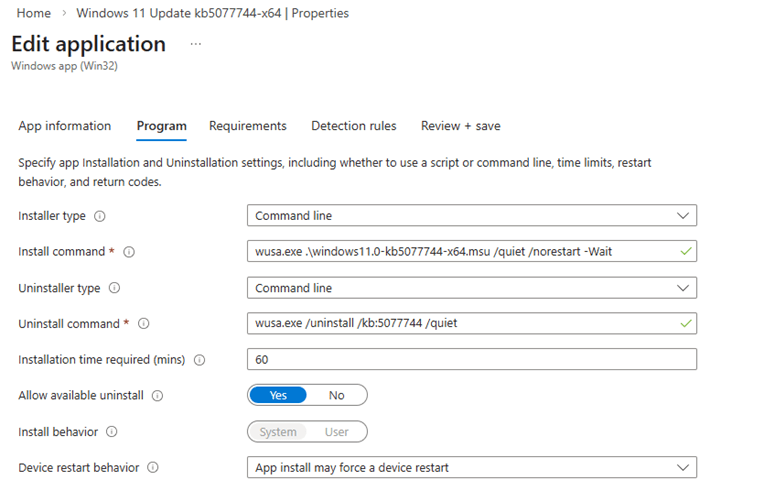
5. Configure the install/uninstall command under “Program” with the following command lines/settings.
6. Add your required settings to “Requirements.”
7. In a text editor of your choosing, create the following PowerShell script:
$KB = “KB5077744”
$HotFix = Get-HotFix -Id $KB -ErrorAction SilentlyContinue
if ($HotFix) {
Write-Output “$KB is installed.”
exit 0 # Detected
} else {
Write-Output “$KB is NOT installed.”
exit 1 # Not Detected
}
8. In “Script file,” browse to where this script is saved and upload the script. Leave all the other settings here the same.
9. Review, save, and deploy to a test group.
Once this KB is installed, your Windows clients should no longer have authentication issues to AVD/W365 environments using the Windows App!

 Big Chris's Cloud PC Chronicles
Leave a comment