
We all should know by now that Windows devices with Secure Boot enabled and have the 2011 Secure Boot certificates, those certificates will start expiring June of 2026. If these certificates expire it will not affect the ability to use the devices, but it will not receive security protections for the early boot process. Windows Boot Manager, Secure Boot databases, revocation lists, etc. would be affected if the certificate expires. This would leave your device more vulnerable to attacks.
BIG CHRIS’ NOTE: Secure Boot should ALWAYS be enabled!
This also affects your existing Azure Virtual Desktop session hosts and Windows 365 cloud PC’s that have Secure Boot enabled (they should). Also, if you have gold images that were created on a Secure Boot enabled VM, the certificate will need to be updated on the images as well. You can edit the registry or use a Group Policy Object to ensure your Secure Boot certificates are updated, but here is how you can deploy the settings for the certificate to be updated using an Intune configuration profile.
- Browse to Devices > Manage devices, then select Configuration.
- Click Create and select New Policy.
- On the Create a profile in the right-hand pane, under Platform select Windows 10 and later. Under the Profile Type select Settings Catalog.
- Give the profile a name. Under configuration settings, click Add Settings and search for “Secure Boot.” Select the three settings under “Secure Boot.”
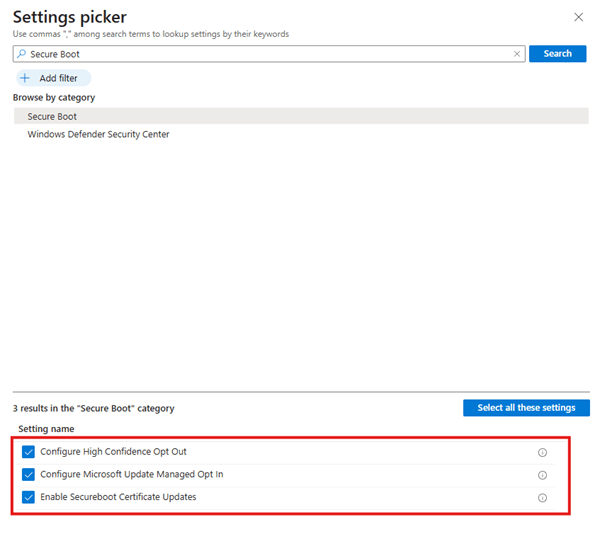
5. Configure the settings:
- Configure High Confidence Opt-Out, Disabled (default)
- This allows devices that have validated their update results to automatically receive certificate updates as part of the monthly updates.
- Configure Microsoft Update Managed Opt In, Enabled (if you are part of a MS Controlled Feature Rollout) or Disabled
- Microsoft assists with deploying certificates to devices enrolled in the rollout.
- Enable Secureboot Certificate Updates, Enabled
- Windows automatically begins deploying updated Secure Boot certificates.
6. Complete the profile and deploy to Entra ID group that contains your session hosts and/or Cloud PC’s.
You will also want to update the Secure Boot certificate on your gold images. Next time you build/update gold images, set the following registry entry on your gold images so Windows Update can update the certificate.
- HKEY_LOCAL_MACHINE\SYSTEM\CurrentControlSet\Control\SecureBoot
- AvailableUpdates REG_DWORD Value=0x5944
- Once Updates Run on your gold images, run the following PowerShell command to confirm the certificate has been updated.
- Get-ItemProperty “HKEY_LOCAL_MACHINE:\SYSTEM\CurrentControlSet\Control\SecureBoot\Servicing” | Select-Object UEFICA2023Status
- If this returns “Updated,” the certificate is updated. Other results are “Not Started” and “InProgress.”
BIG CHRIS’ NOTES: For errors, check the UEFICA2023Error value under HKEY_LOCAL_MACHINE\SYSTEM\CurrentControlSet\Control\SecureBoot\Servicing. The value of that entry will be an error code.
Get this taken care of soon! June is next month!


Leave a comment